How it works
From an uploaded PDF to a signed document in five steps, shown with screenshots of the product.
Five steps
-
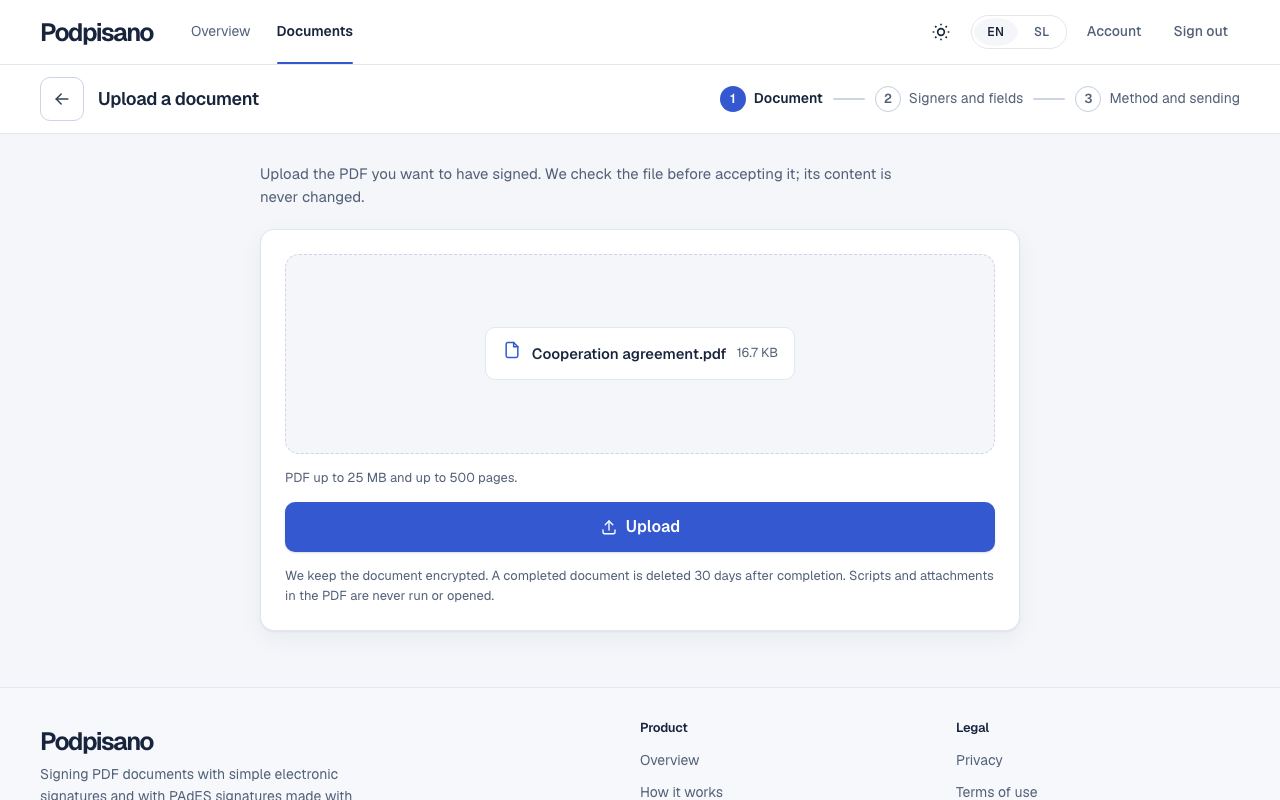
Step 1: Upload a PDF
Choose a PDF file or drag it onto the page. We check the file before accepting it; we do not change its content.
-
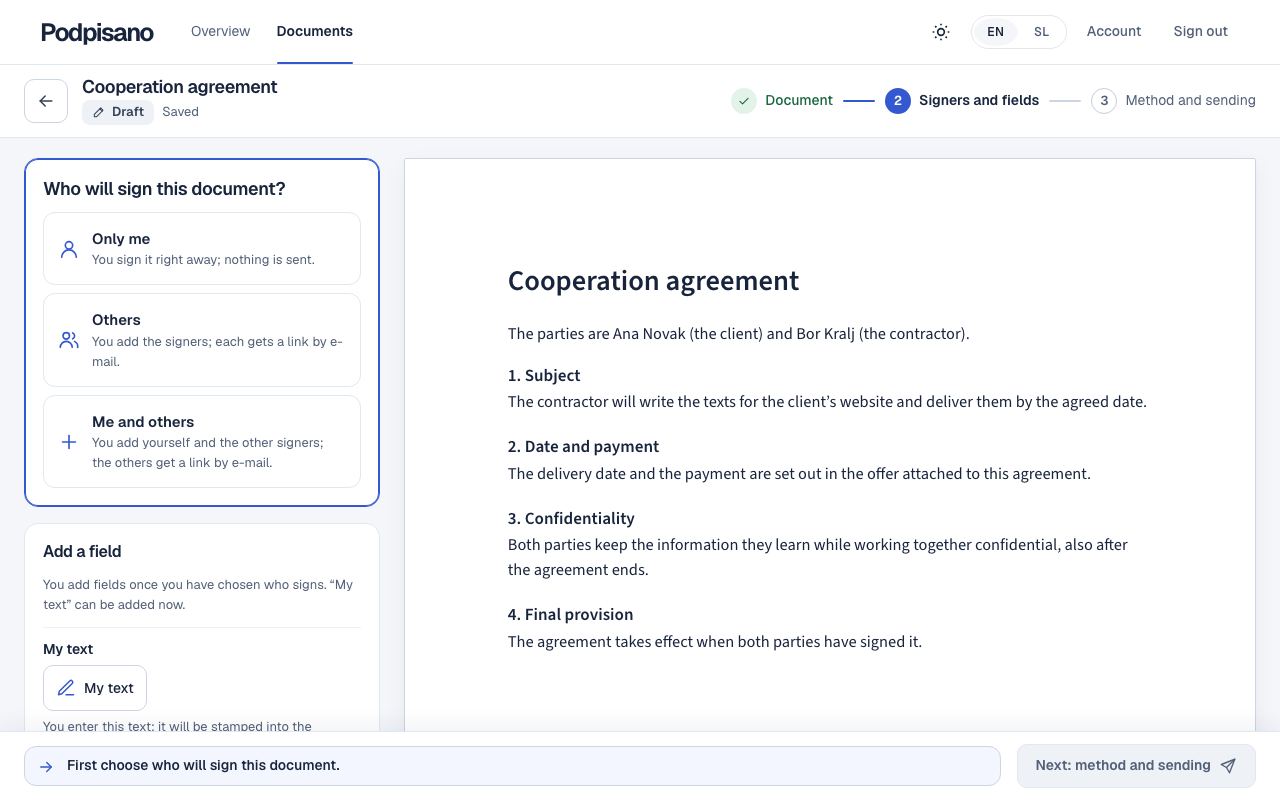
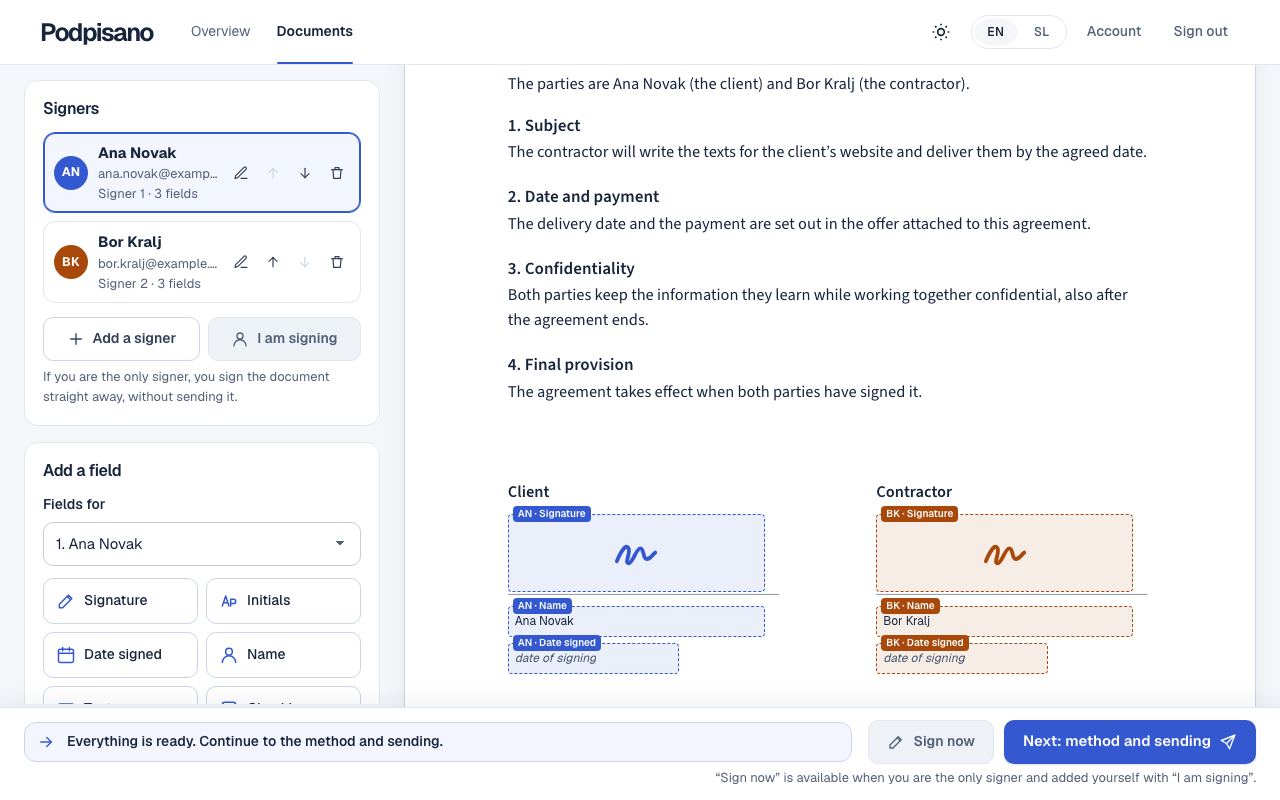
Step 2: Say who signs and mark the places
First you choose who will sign the document: only you, others, or you and others. Then you place the fields on the document; each box shows what will be printed.
-
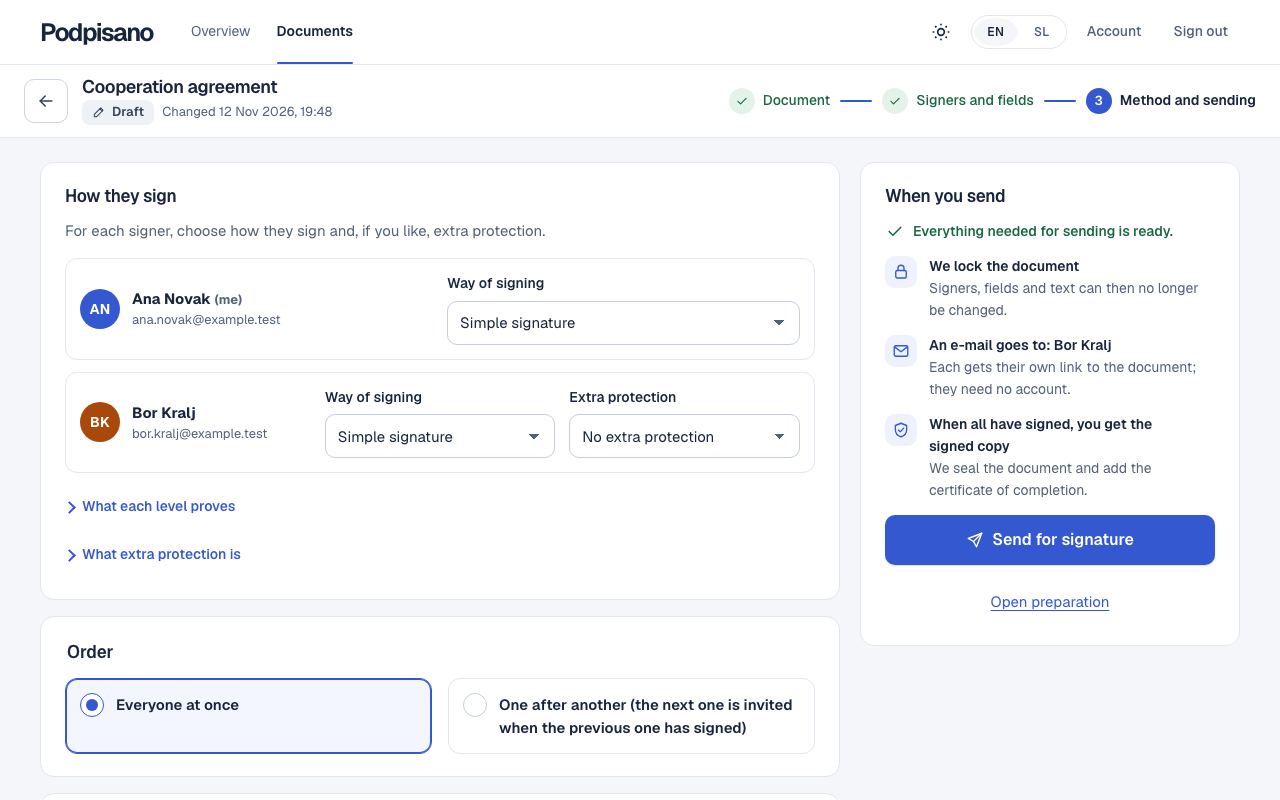
Step 3: Choose how they sign and send
For each signer you choose the way of signing and, if you like, extra protection. The summary beside it says what happens when you send.
-
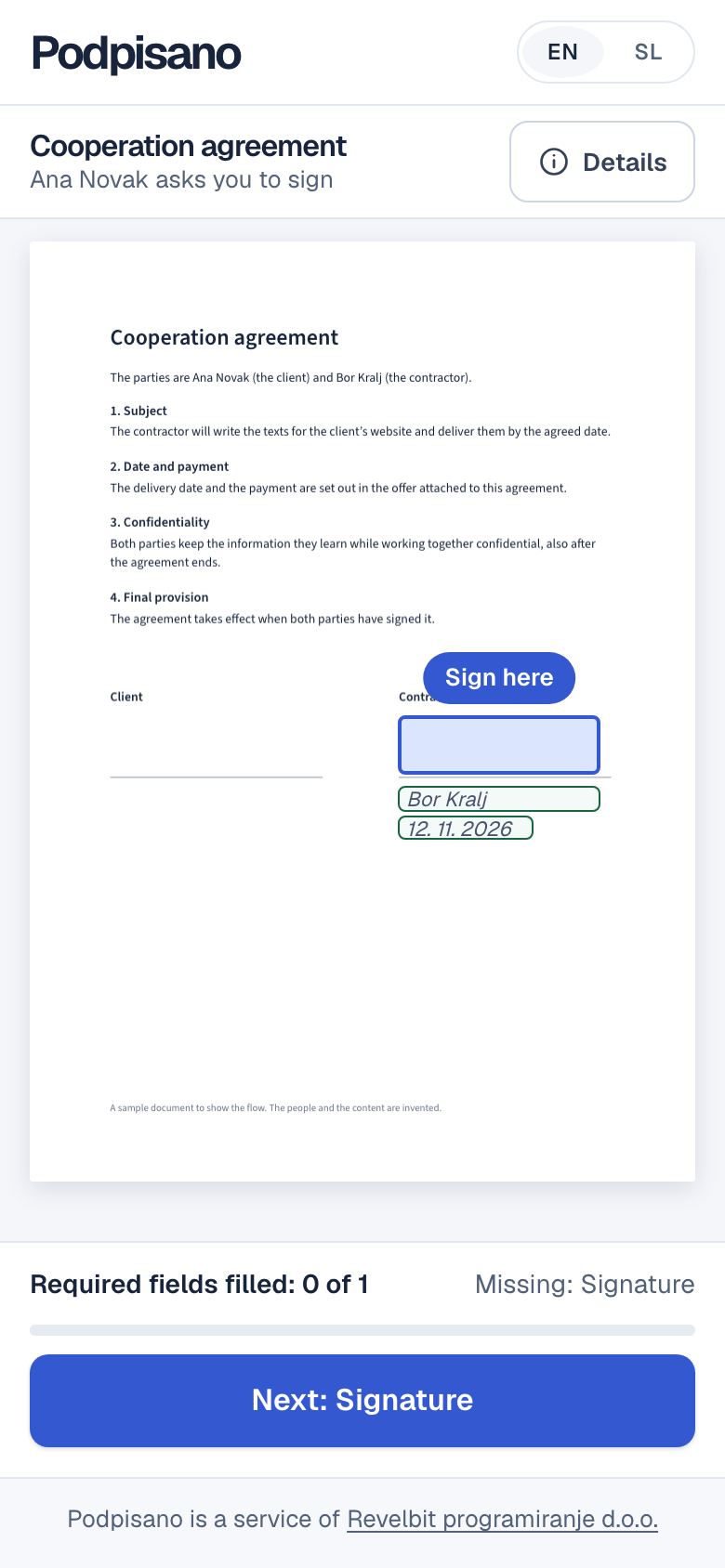
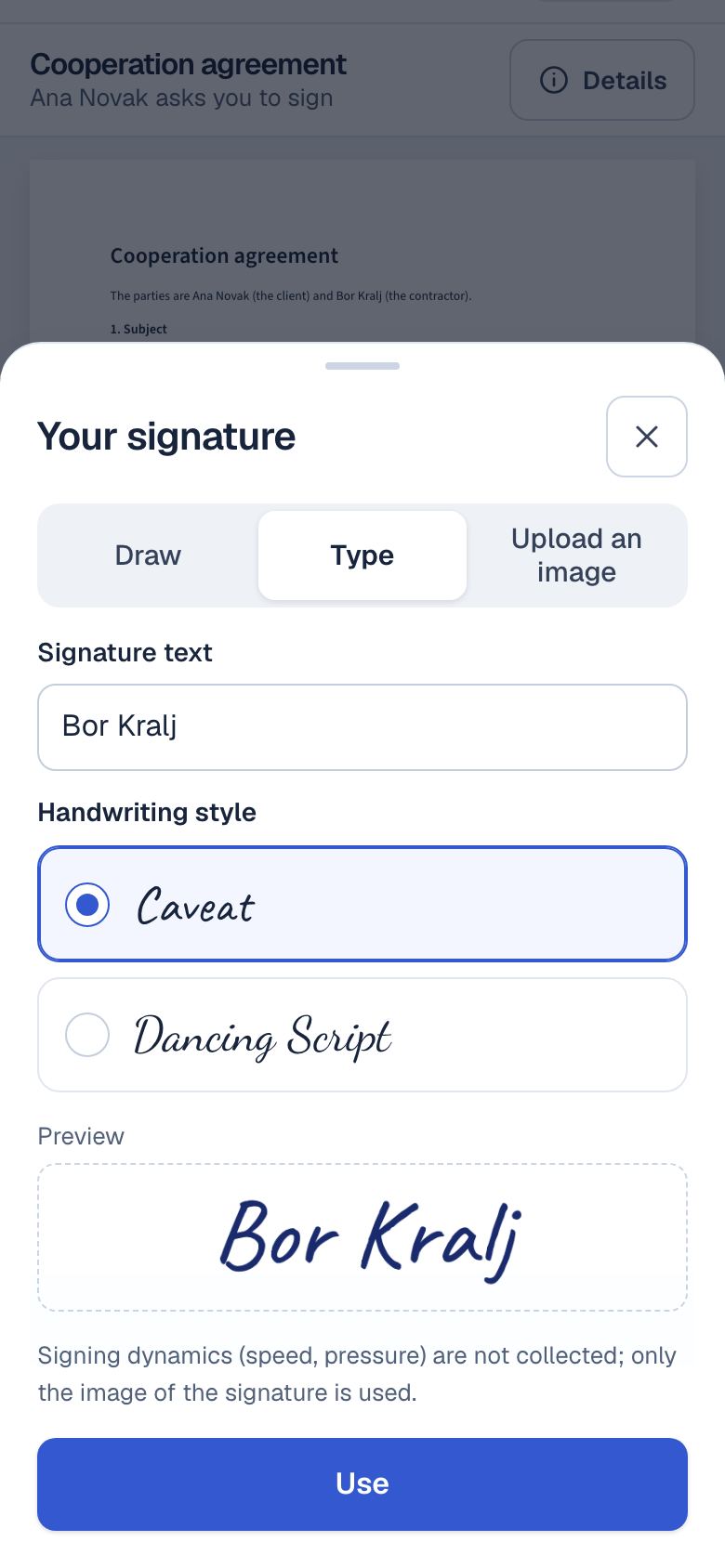
Step 4: The signer signs on a phone
The signer gets a link by e-mail and needs no account. The document shows where to sign; the signature is drawn, typed or uploaded as an image.
-
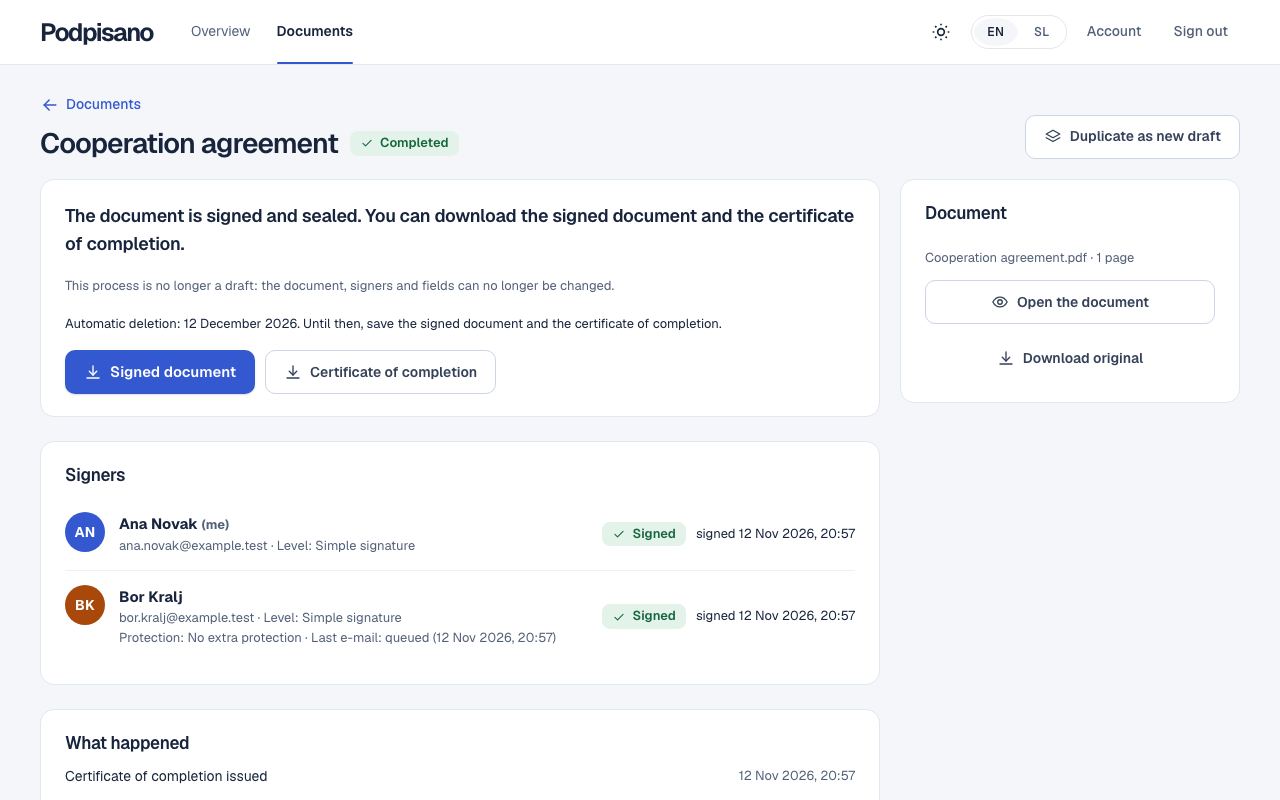
Step 5: Get the signed document and the certificate
When everyone has signed, we seal the document. On the document’s page you download the signed document and the certificate of completion.
Only your own document?
- To the question »Who will sign this document?« answer »Only me«.
- Click the document where the signature goes.
- You sign it right away; nothing is sent.
What we record and what we do not check
Signers sign with a drawn, typed or uploaded signature. The evidence of the procedure is the event log and the electronic seal of Podpisano over the final document.
When everyone has signed, the document is sealed with the electronic seal of Podpisano. The seal proves that the document has not changed after completion; it does not prove who signed.
This is not an advanced or qualified electronic signature. The signers’ identity is not verified: an outside signer shows only control of the e-mail address (and a code, if you choose one).
Signing with a certificate
For a signer who has their own digital certificate in a .p12 or .pfx file, for example from SIGEN-CA.
-
The sender chooses a certificate signature
When sending, you choose »Signature with a certificate (.p12)« for that signer.
-
The signer picks the file and types its password
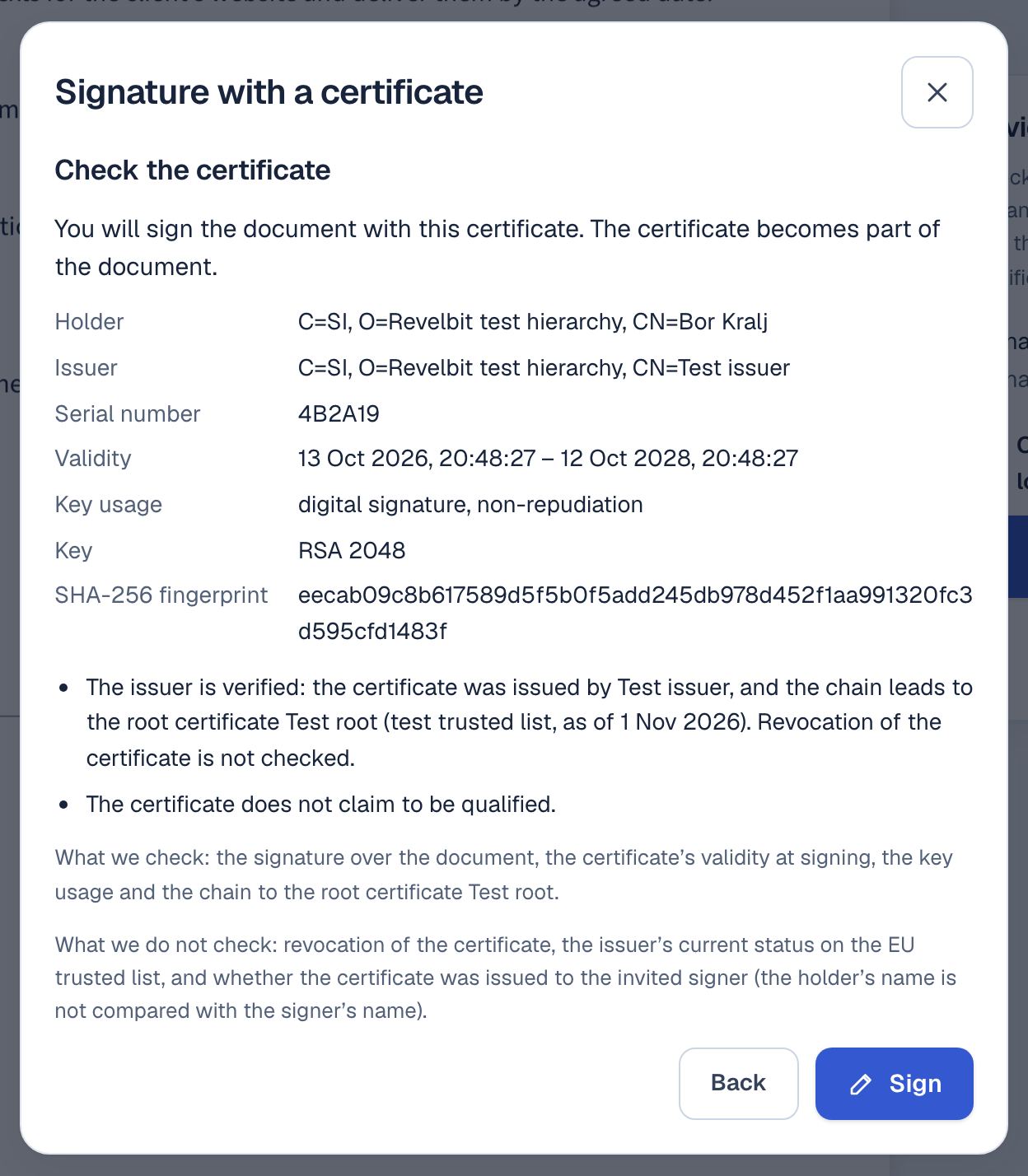
The file and the password stay in their browser. Before signing, they check the certificate shown.
-
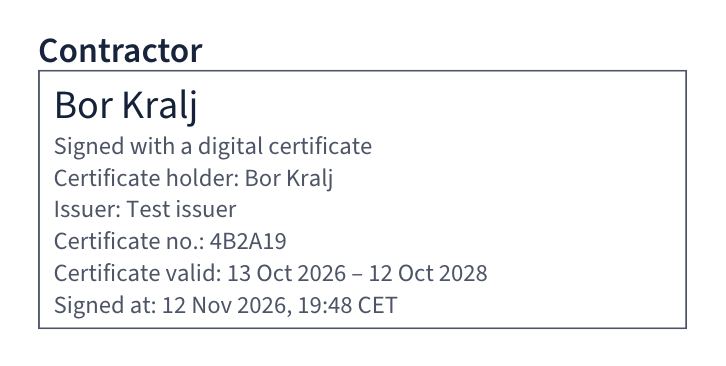
The document gets a visible signature
The signature shows the name, the certificate’s holder and the signing time. For a verified chain it also shows the issuer, the certificate’s number and its validity.
What we check: the signature over the document, the certificate’s validity at signing and the key usage.
We do not check whether the certificate was issued to you, nor its revocation; the issuer is checked only up to the root certificate SI-TRUST Root. This is not a qualified electronic signature.
Honest about signature levels
- A signature made with a .p12 file is not a qualified electronic signature, because the key is not in a qualified device.
- What a certificate states about itself (for example that it is qualified) is shown as its claim. The chain to the issuer is checked only up to the root certificate SI-TRUST Root of the trusted list of the Republic of Slovenia; certificate revocation is not checked.
- We do not edit the content of an existing document: fields and signatures are added as new revisions, earlier ones stay unchanged.